
Merge PDF
Merge PDF Online – The Smart Way to Combine Files
The Ultimate Guide to PDF Document Management: How to Merge PDF Files Easily
In today’s digital world, PDF files are essential for everything — from school projects to business contracts. Learning how to merge PDF documents can save time, improve organization, and simplify your workflow. Whether you’re combining multiple reports, invoices, or forms, merging PDFs online is a quick and secure way to keep your documents in order.
This guide explains everything you need to know about PDF merging — including its benefits, the best tools to merge PDFs, and simple step-by-step methods to combine your files efficiently and safely.
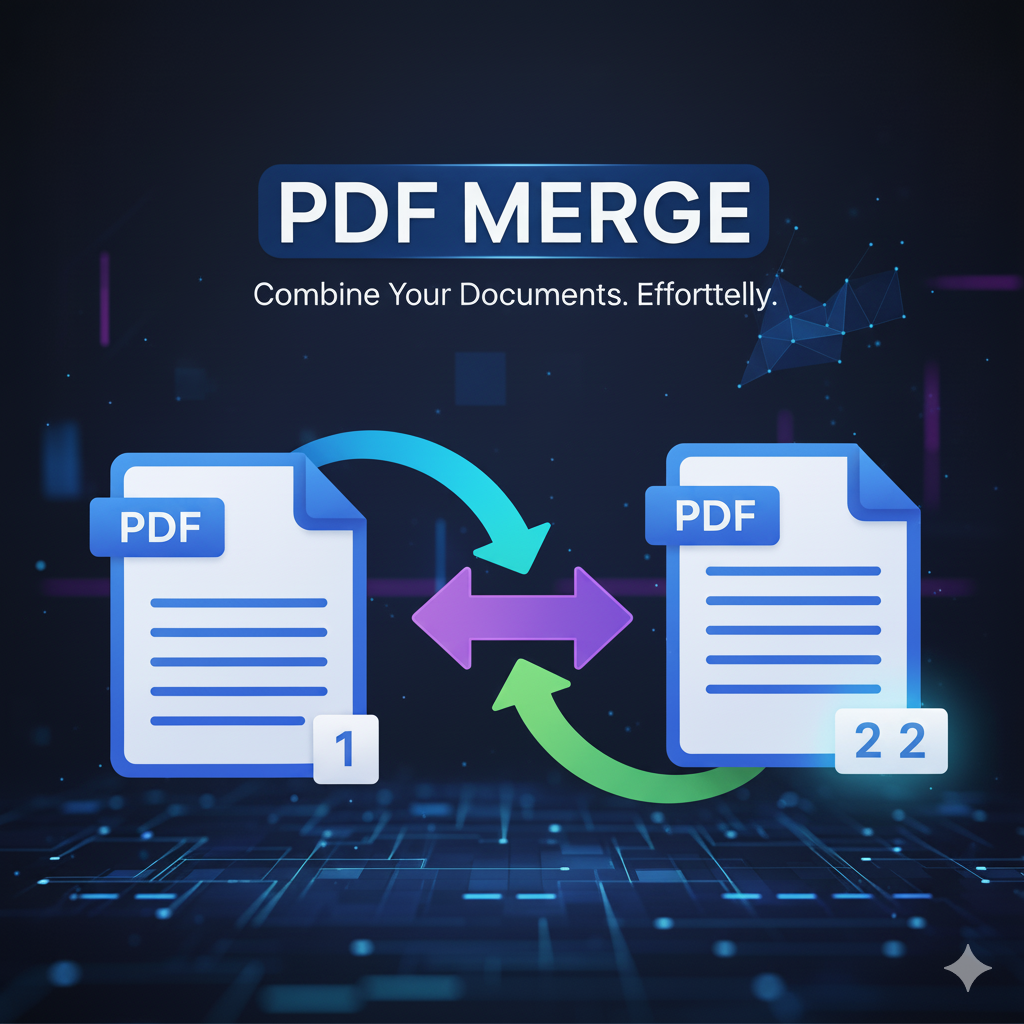
The Ultimate Guide to Merging PDF Files Online with primepdfeditor
What Is a PDF File?
A PDF (Portable Document Format) is a universal file type that preserves its original formatting across all platforms and devices. PDFs ensure that text, images, and layouts look exactly the same everywhere, making them ideal for contracts, reports, presentations, eBooks, and official documents.
Why Merge PDF Files?
Merging multiple PDF documents into one file is one of the most efficient ways to stay organized. Whether you’re combining invoices, assembling project sections, or creating a single digital report, merging PDFs provides clarity, accessibility, and convenience.
Benefits of Merging PDFs
✅ Simplified File Management
Combining several PDFs into one makes document organization effortless. Instead of tracking multiple files scattered across folders or cloud drives, you get a single, easy-to-access PDF.
✅ Reduced File Size (with Compression)
After merging, you can compress the PDF using primepdfeditor’s PDF Compressor to compress PDF tool to save storage space without losing quality. This is perfect for sharing or uploading documents online efficiently.
When Should You Merge PDFs?Merging PDFs is especially useful in situations like:
- Creating a presentation or project report
- Compiling research notes or study materials into one document
- Submitting multiple documents for a job application
How to Manually Merge PDF Files
🧩 Using Adobe Acrobat
- Open Adobe Acrobat and go to “Tools” → “Combine Files.”
- Click “Add Files” to select the PDFs you want to merge.
- Choose “Combine” and save your new merged document.
🍎 Using Preview on Mac
- Open the first PDF in Preview.
- Click View → Thumbnails to show page previews.
- Drag and drop the second PDF into the sidebar.
- Save your new merged PDF file.
☁️ Using Google Drive
- Upload your PDFs to Google Drive.
- Use a third-party tool such as primepdfeditor (accessible via your browser).
- Select your files, merge them instantly, and download the result.
How to Merge PDF Files Online
With primepdfeditor, you can merge PDF files online for free in seconds — no installation or registration required.
Steps to Merge PDFs Online:
- Visi1t primepdfeditor.com.
- Upload the PDF files you want to combine.
- Arrange them in your preferred order.
- Click “Merge PDF” and download your newly combined document.
Top Features of primepdfeditor – The Best Free PDF Merger Tool
When choosing a PDF merging tool, consider these essential features that primepdfeditor offers:
- 🧭 User-Friendly Interface – Simple drag-and-drop functionality.
- ⚡ Fast Processing – Merge large files in seconds.
- 🔒 Top-Level Security – End-to-end encryption and automatic file deletion.
- 📚 Extra Tools – Includes PDF compression, split, edit, and convert functions.
Free vs. Paid PDF Merging Tools
Free tools like primepdfeditor allow unlimited PDF merging with no watermarks or registration.
Premium options, such as Adobe Acrobat, offer extra functions like advanced editing or batch compression.
If you frequently handle PDFs, primepdfeditor provides an excellent all-in-one PDF solution — powerful, free, and secure.
Security Considerations When Merging PDFs
Always ensure your documents remain protected.
primepdfeditor uses SSL encryption and auto-deletes all uploaded files after processing, keeping your data 100% safe and private.
How to Compress PDFs After Merging
After merging, your file size may increase slightly. Use primepdfeditor’s Compress PDF feature to reduce the file size while maintaining high quality — ideal for emailing or cloud uploads.
Conclusion
Merging PDF files with primepdfeditor is fast, secure, and completely free. Whether you work from a desktop, laptop, or smartphone, you can combine, compress, and manage PDFs online without hassle.
Simplify your workflow today — visit primepdfeditor.com to start merging your PDF files effortlessly.
📘 Frequently Asked Questions – primepdfeditor Merge PDF Tool
Q1: What does the Merge PDF tool do?
A: It allows you to combine multiple PDF files into a single document quickly and securely.
Q2: Is primepdfeditor’s Merge PDF tool free to use?
A: Yes, it’s 100% free, with no sign-up or hidden fees.
Q3: Can I rearrange PDF files before merging?
A: Absolutely — you can drag and drop to reorder files before merging.
Q4: Is it safe to merge sensitive documents on primepdfeditor?
A: Yes. All files are encrypted and automatically deleted after processing.